Open WritingViper
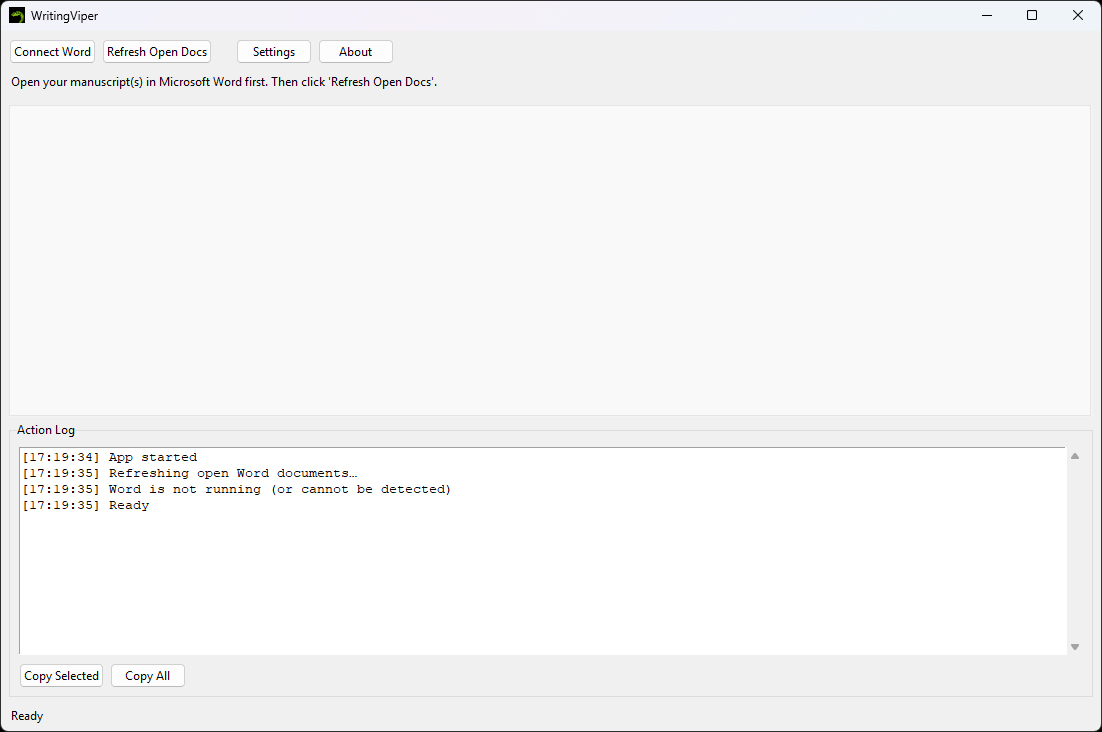
WritingViper is a simple .exe and can work from any directory anywhere on your computer. Put it where you can access it easily. When you open WritingViper and Microsoft 365 Word is not open, you will see a basic app window like this.
Open Microsoft 365 Word
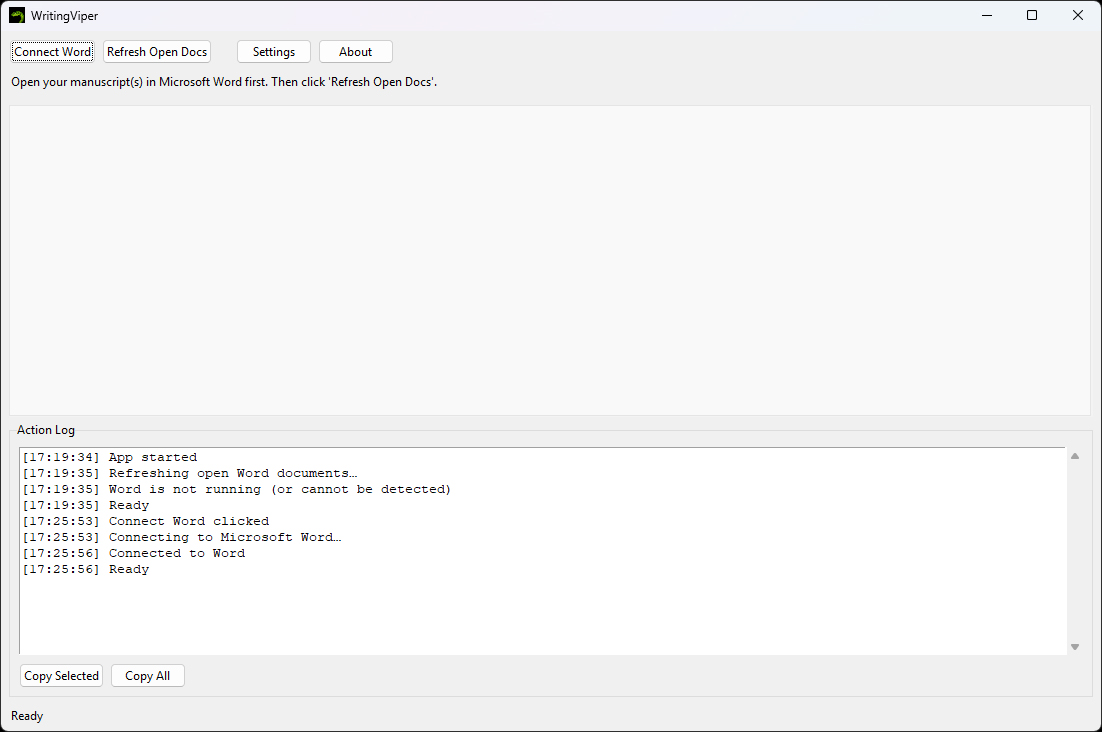
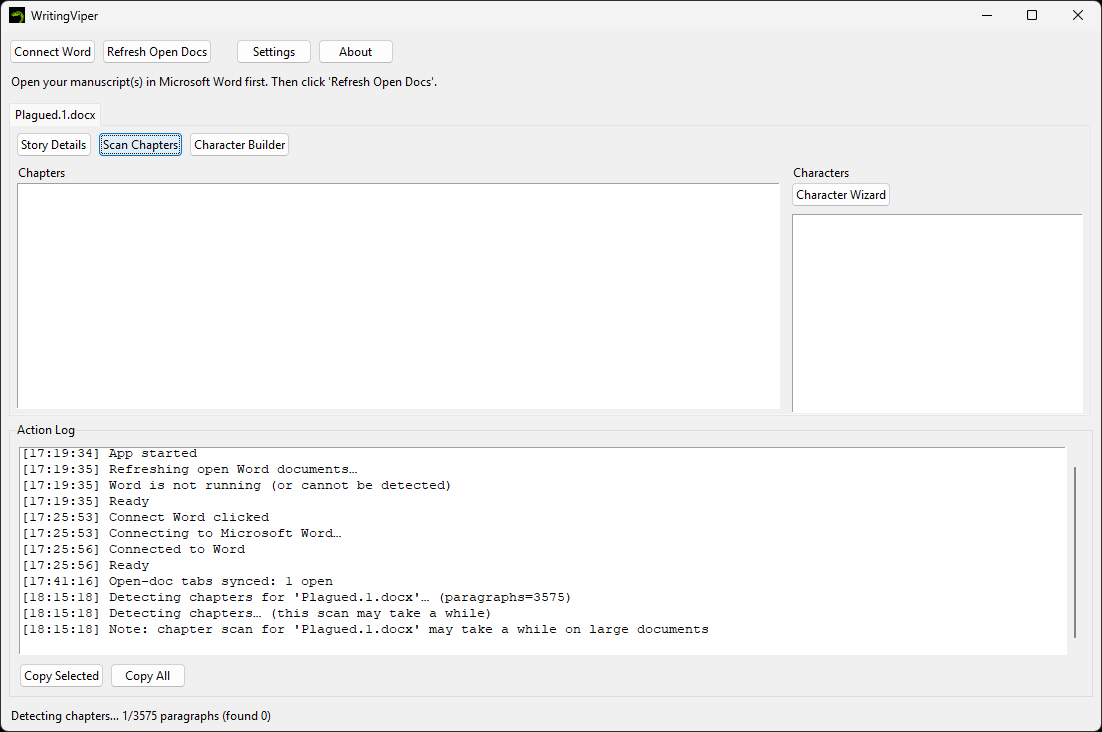
If Microsoft 365 Word is not open yet, you can either open it yourself, or click on the "Connect Word" button in the WritingViper app to have the app open Word for you.
Open Your Manuscripts
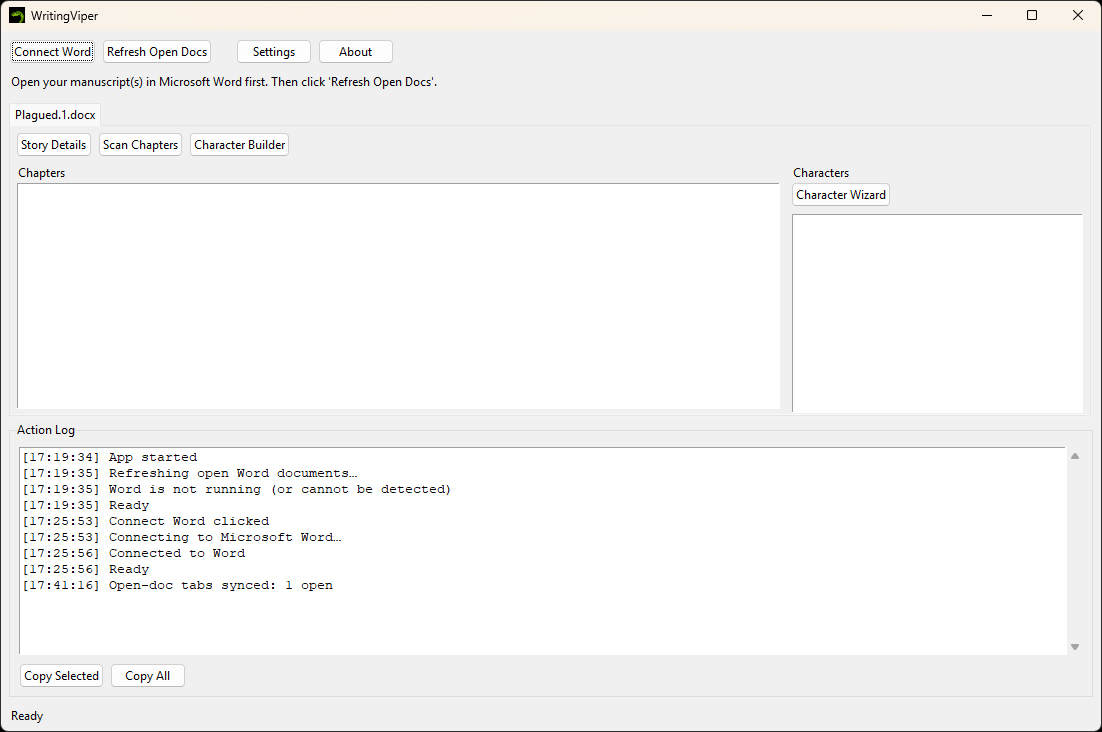
Manually open your manuscripts in Word if you do not have them open yet. WritingViper is fairly good at detecting the documents in Word, but if it cannot find the document you want, try clicking on the "Refresh Open Docs" button. For each document it finds, WritingViper will create a tab in the UI for that manuscript. And each manuscript gets its own settings for the beta reader and line editor you choose.
Your Story Details
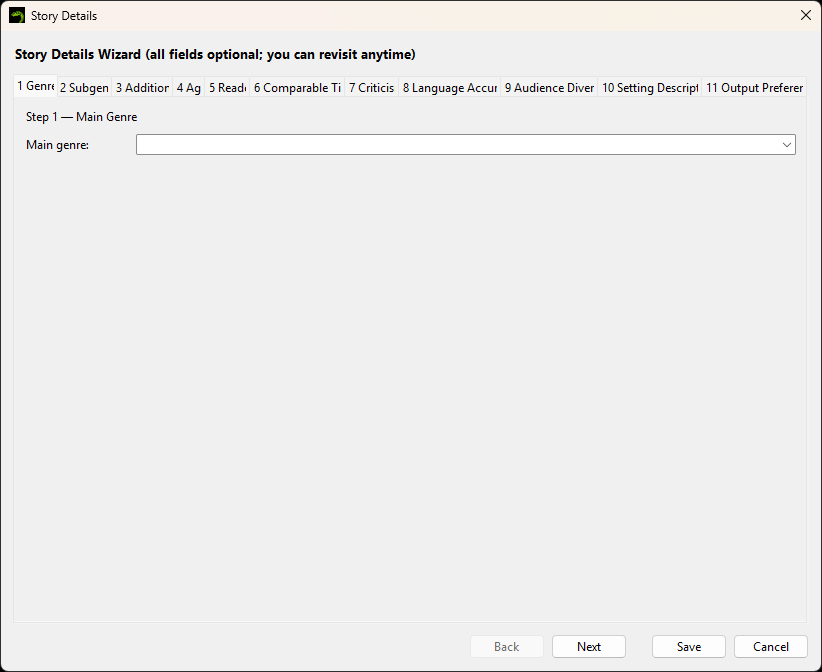
To help WritingViper (and thus Copilot for Word) understand the type of story you have, and the feedback you desire, click on the button Story Details in the tab for your manuscript. You can revisit Story Details at any time. WritingViper will pop up a separate wizard window with several tabs on it.
Choose your story's main genre, which will then populate the subgenre fields in the second step. You can always click on any of the tabs above, or click on the Next/Back buttons at the bottom of the window to navigate the wizard.
In the third tab, you can select any additional main genres for your work in case your story crosses genres and you need WritingViper (and Copilot for Word) to know.
In the fourth tab, you can select any and all age ranges for your intended audience. If you want your manuscript to reach adults and young adults, for example, then highlight both. The advice that you will receive will try its best to reach both groups.
In the fifth tab, you can select the intended type of reader you want to reach. Want the advice to tell you what a critic would tell you? Another beta reader? A possible agent? Or just a fan of the genre. Click all that apply and WritingViper (and Copilot for Word) will do its best to give you feedback from all of them when possible.
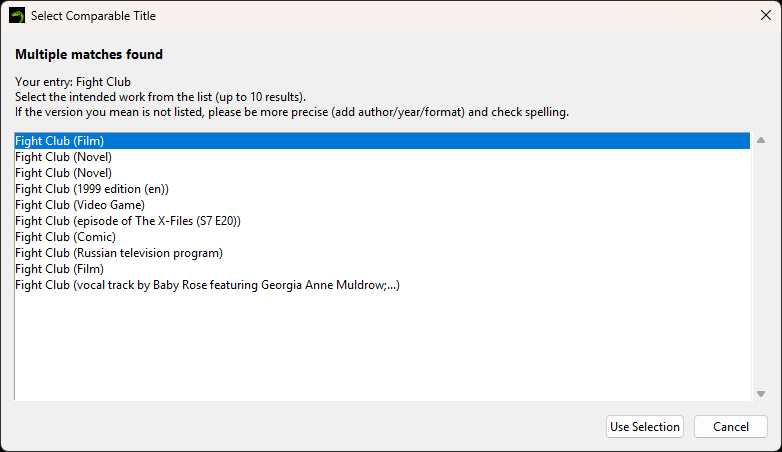
In the sixth tab, you can tell WritingViper which works or entities are very similar to your work. Say that your work is a cross between Fight Club and Pride & Prejudice meet Godzilla. Put these into the fields here. Fight Club in 1, Pride & Prejudice in 2, Godzilla in 3. If you are connected to the Internet while using WritingViper and you fill in a field, leaving the field will have WritingViper check Wikipedia to make sure you get the correct IP. If more than one possible entity is found, another pop up will appear. Select the one that fits what you wanted, and WritingViper will enhance the field to make sure it passes on the correct version to Copilot for Word.
In the seventh tab, WritingViper defaults to a balance between gentle and guiding feedback, to brutally honest and critical feedback. It will point out flaws and try not to hurt anyone's feelings in the process. But you can also change the slider to be more gentle (move it toward 1) or be more critical (move it toward 10). If you get feedback and it's too much in one direction or the other, come back to your story details and change this slider.
In the eighth tab, WritingViper defaults to a balance between time/setting-specific language adherence and modern English language adherence. Do you want your 1730s Frontier Romance story to ensure that the language and such fits that time period and setting, or do you want your story to be a modern day read without any archaic terms and speech? Move the slider toward 1 to make this use more modern English language, and move it toward 10 to make it more time/setting friendly language. If your feedback returns too much toward one or the other, come back to your story details and change this slider.
In the ninth tab, WritingViper defaults to a beta reader approximation balance between someone who is well versed in your genre and subgenre, and someone who is just a casual reader who has never read your genre. If you want the beta reader to point out issues where a casual reader would get confused about terminology, genre tropes or such, move it toward 10. If you want the beta reader to be more like someone who has read nearly everything under the sun in your particular genre, move this slider toward 1. If your feedback returns too much toward one or the other, come back to your story details and change this slider.
In the tenth tab, WritingViper will include up to 1000 characters that you type for Copilot for Word to have a better understanding of your story's setting, including anything about your story you want Copilot for Word to focus on. Is it like Logan's Run in that no one over the age of 30 should be alive? Do you want to make sure that there are no slow beats during action scenes? Put this text in this box.
In the eleventh tab, WritingViper provides a way for you to focus the type of feedback you desire. Do you want it to find where you could use more brevity? Make sure characters are fleshed out properly? Make sure the story is funny? And, as an added function, WritingViper will even tell Copilot for Word that you are not a native speaker of English and you would like notes on any aspects of your writing which may not sound like a native English speaker would use, even if it were grammatically correct. Here, also, you can put in the point-of-view for your story, and your narrator (if told in first-person), so that the line editor can point out where you slip from this point of view.
All of these tabs are optional. If you're done editing your story's details, click "Save". If you want to discard your changes, click "Cancel".
Do an Initial Scan
Now let WritingViper scan your document for chapters and characters. It is not a smart app in that it will always know all the possible characters in your story, so it will need a little assistance once the chapter scan is done figuring out which are characters you want to work on and which are just words used often in the story that it thinks might be characters. It will also scan for chapters (and acts when possible), including prologues and epilogues, and organize them into the Chapters window. If your story has no chapters, it will default to a chapter called "Complete Story." Since the app has to interact with Word through Word's internal system, it will break up your document into chunks of 200 paragraphs each until it reaches the end. As it finds new chapters, it will note them in the Action Log so you can see that it is still working. Note: Larger documents will take some time to scan. Please be patient.
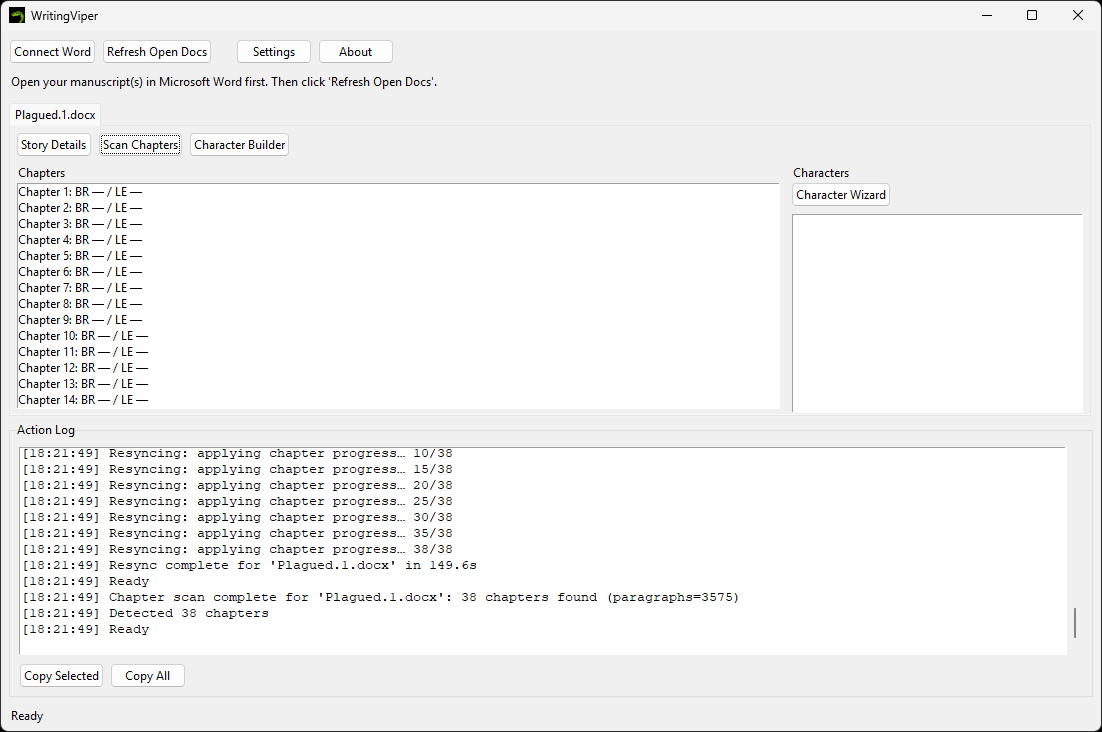
Scan Completed
Once the scan has finished, you should see all of your chapters (or Complete Story) in the Chapters window. The text after each chapter, "BR — / LE —," is to inform you of the last paragraph scanned in those chapters with the Beta Reader (BR) and Line Editor (LE). If there are dashes instead of a number, then no scan has been done on the chapters for either of those. You will also notice that the Characters window is still blank. Don't worry, we're getting to them!
Fix Your Characters
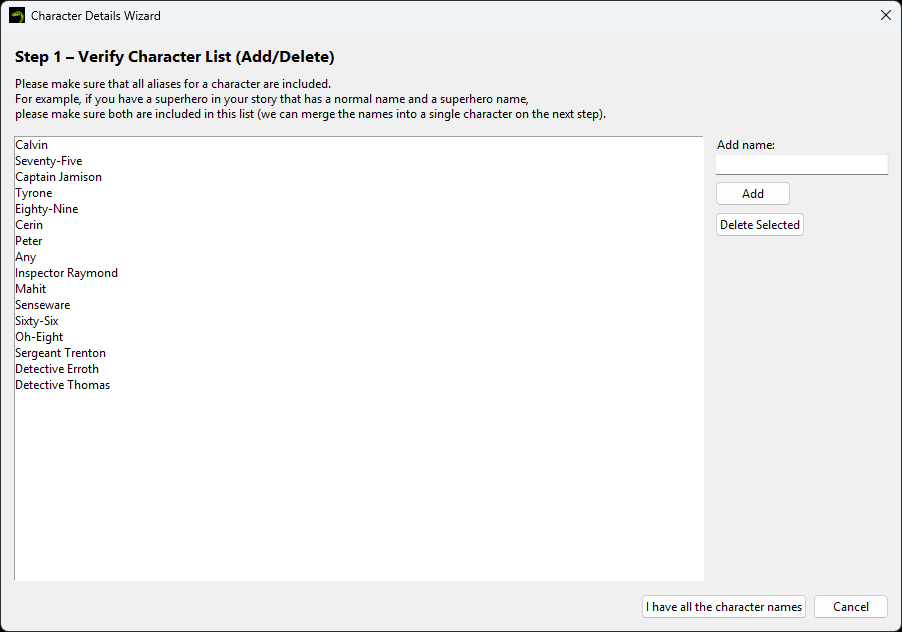
As you can see, this app is not 100% going to get everything right when it scans your document. "Senseware" is the system the main character uses in her plague doctor outfit, but it's used so often with her that the app believes it must be a person. There's also "Any" that somehow got included. The numbers, like Seventy-Five and Oh-Eight are the plague doctor numbers of various characters, so they should be included. This is where you need to step in and help WritingViper with your story.
If something on this list is not a character in your story, highlight their name in the box and click the "Delete Selected" button. You can highlight multiple entries at once and delete them all. If you've accidentally deleted a character, or a character was not included, you can add the name in the text field to the right and click "Add" to include them in the list. Once you have the major characters in your story, click on "I have all the character names" to continue.
Characters as Window Dressing
It might be that you have characters in your story that belong in your list of characters, but you don't need to tell WritingViper (or Copilot for Word) anything about for line editing and beta reading notes. If so, in the second step, "Select Window Dressing Characters", you can highlight any and all characters that are just "window dressing," or not important enough for you to give further feedback for now. Don't worry, they'll still be characters, just they won't complicate your UI.
If none of them should be discarded, then click the button marked "Continue with all of these characters" to move on. If you have any highlighted, then it will change this button to "These characters are window dressing" and they will not continue to your UI to fill in the Characters box. You can always return to this wizard if you need to change the characters WritingViper tracks for you.
Characters Have Multiple Names
Sometimes your characters might have multiple names in the story. For example, a superhero would have a normal everyday name that they keep from the world, and then their superhero name. But to WritingViper, they both appear enough that the script thinks they're two different characters. In the third step, you can highlight all names of a single character using CTRL+Click, and then click the button marked "Merge these names into one character". WritingViper will then make this character have the first name in the list and include (aka Its Other Names). On the next step, if any names were merged, it will then ask you which is the most preferred name to reference the character, and it will change the order for your character to avoid confusion.
Do We Have a Narrator?
The character wizard will check the point of view for your story. If you didn't set it in the Story Details wizard, don't worry, you can still set it here. And if it's First Person, then WritingViper will ask you which of your characters is the narrator. This ensures that the story's narration fits the character's voice as it does its check of your manuscript. Any other point of view, it won't ask about any narrator.
Who Are Your Main Characters?
To help guide the app to better your manuscript, it will need to know the main characters. These are the protagonist and the antagonist, and all the characters which directly influence them and help make their journeys through your manuscript dynamic. Highlight the protagonist and antagonist, and those who are major characters to influence these two. If a character has little, if any, influence on the protagonist or antagonist, do not highlight them.